Data Sources
The Data Source page is exclusive to Global Administrators, providing a centralized hub to manage and configure data sources. This page allows administrators to view and modify details related to various data sources integrated into the TIMS system.
Accessing the Data Source Page
Who : Global Administrators
How :
-
Log in to the TIMS application.
-
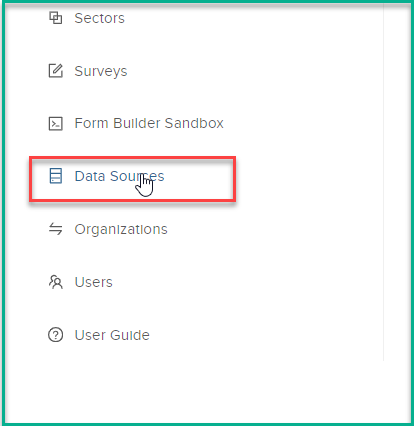
Navigate to the left side menu.
-
Click on 'Data Sources.'
Sources Overview
Upon accessing the Data Source page, Global Administrators will see a list of available data sources with the following information:
    Name
    Status (Active/Inactive)
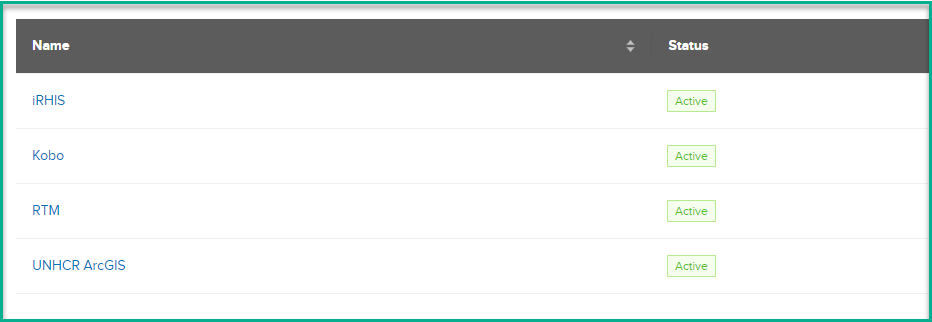
The Data Source page exhibits a list of sources, encompassing:
    iRHIS: Active

    Kobo: Active

    RTM: Active

    UNHCR ArcGIS: Active
If the status of a source is marked as "Inactive," it indicates the suspension of data synchronization from that source to TIMS.
General Info
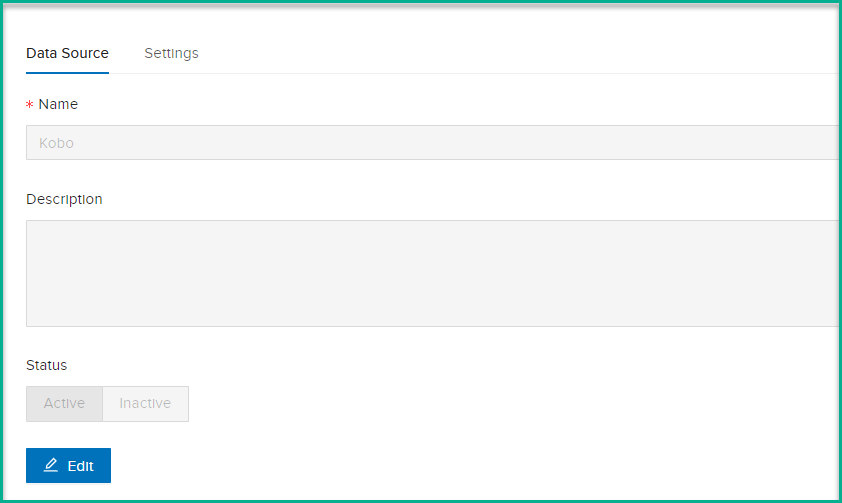
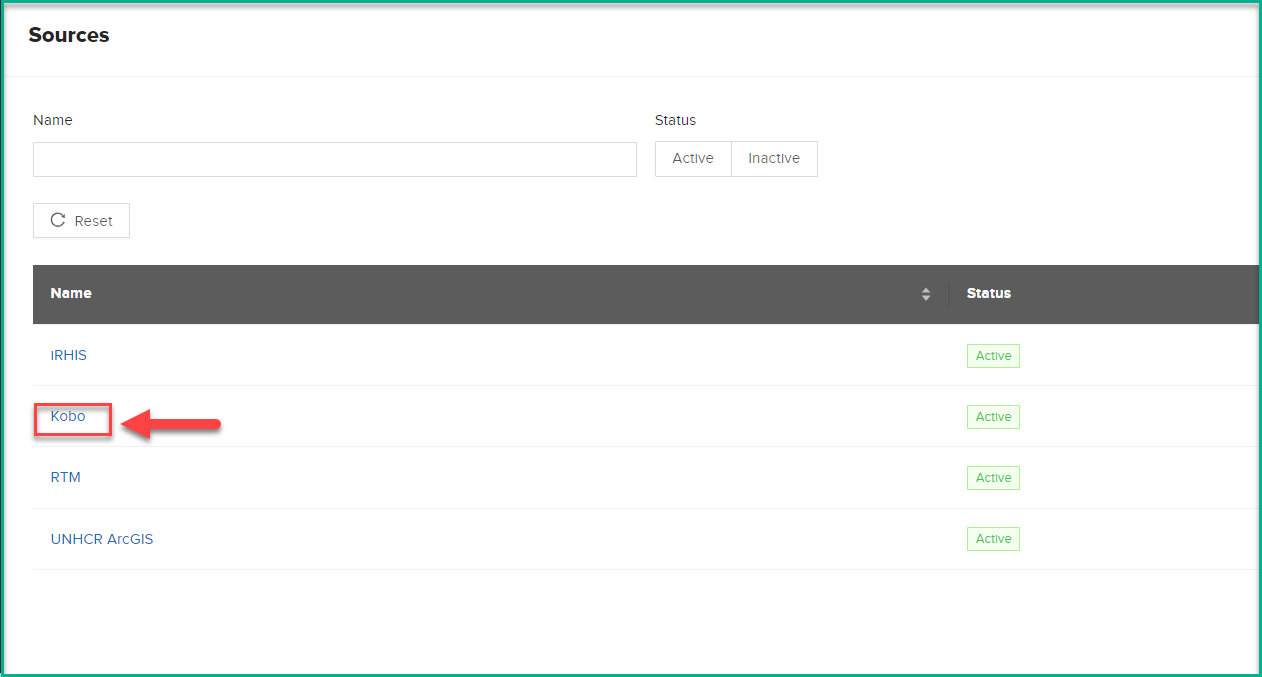
Clicking on the name of the "Kobo" data source opens page with two distinct tabs:
Data Source Tab:
General information about the data source:
-
Name
-
Description
-
Status (Active/Inactive)
-
Status Selection: Choose "Inactive" to deactivate data synchronization from Kobo to TIMS.
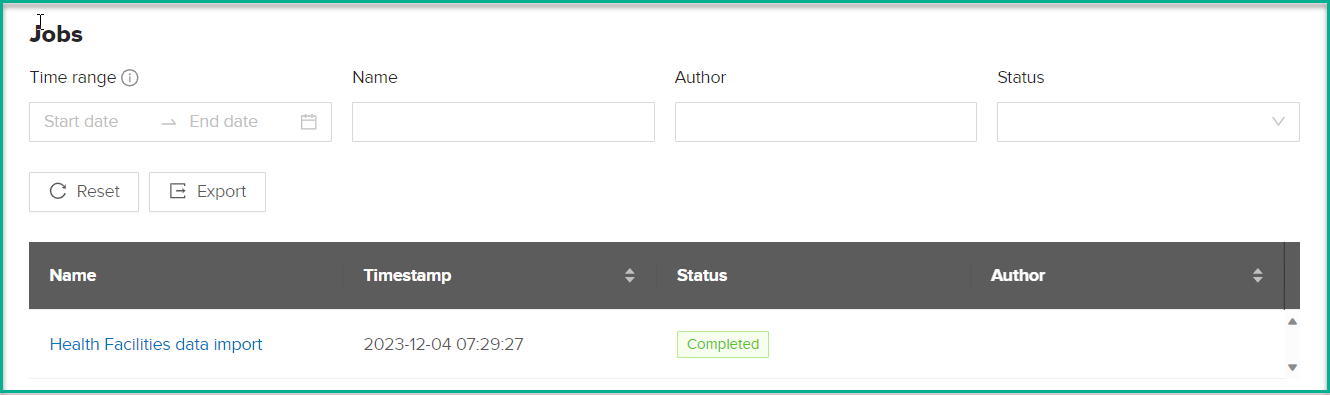
- Jobs List: Displays all synchronization jobs related to Kobo, showcasing their status (success/failed) and respective names.
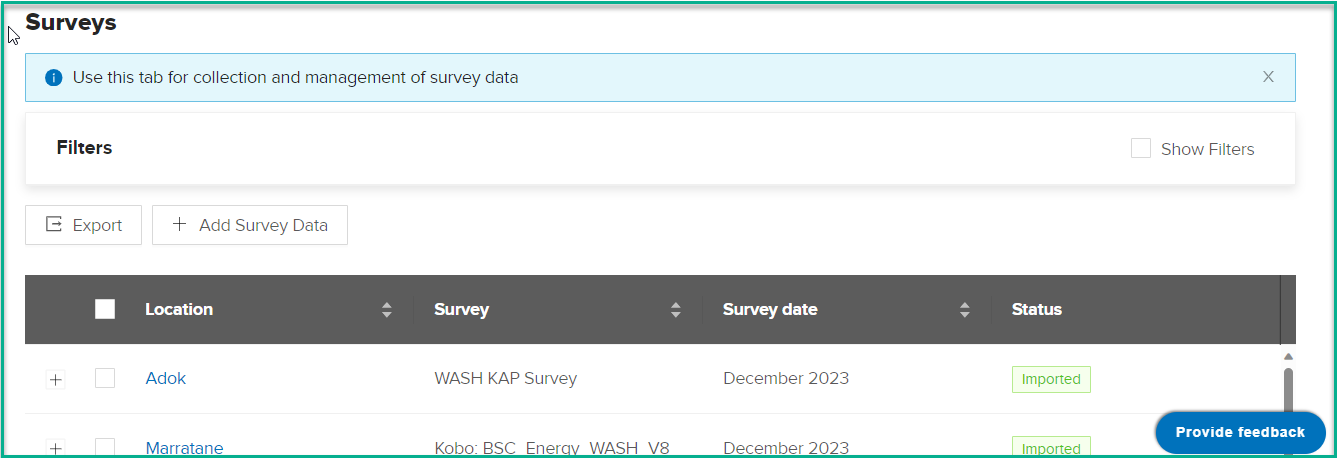
- Surveys List: Presents a comprehensive list of surveys reading from Kobo, providing options for export and filtering.
KOBO Settings
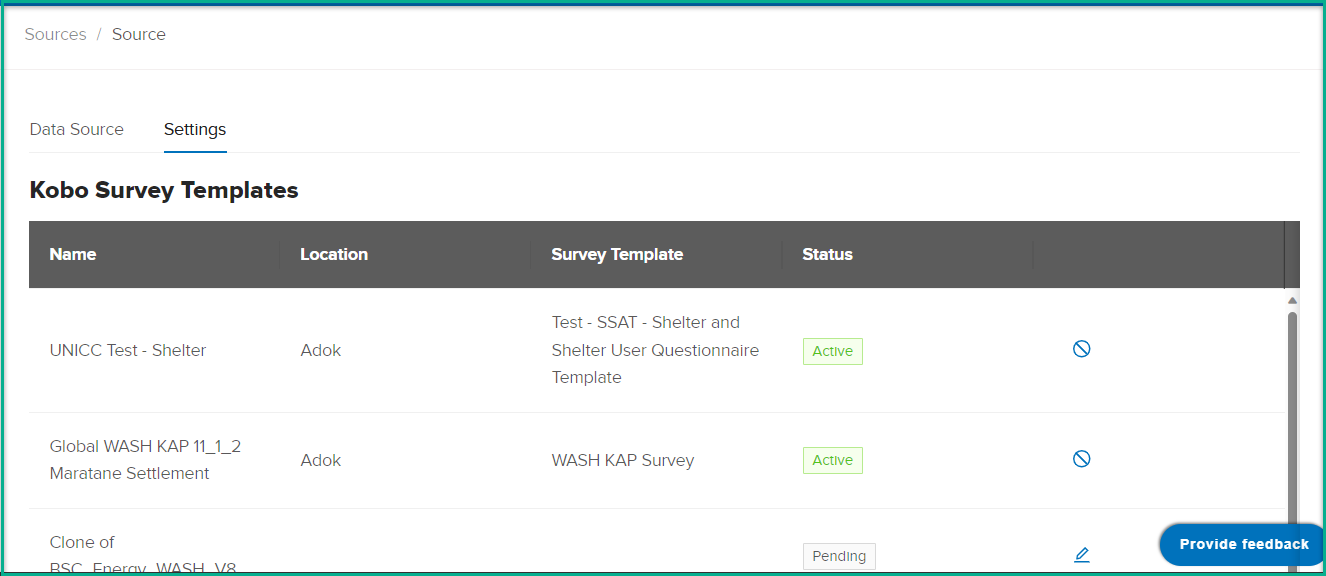
On this tab, the system displays all Kobo surveys Templates that Kobo users share with the TIMS user.
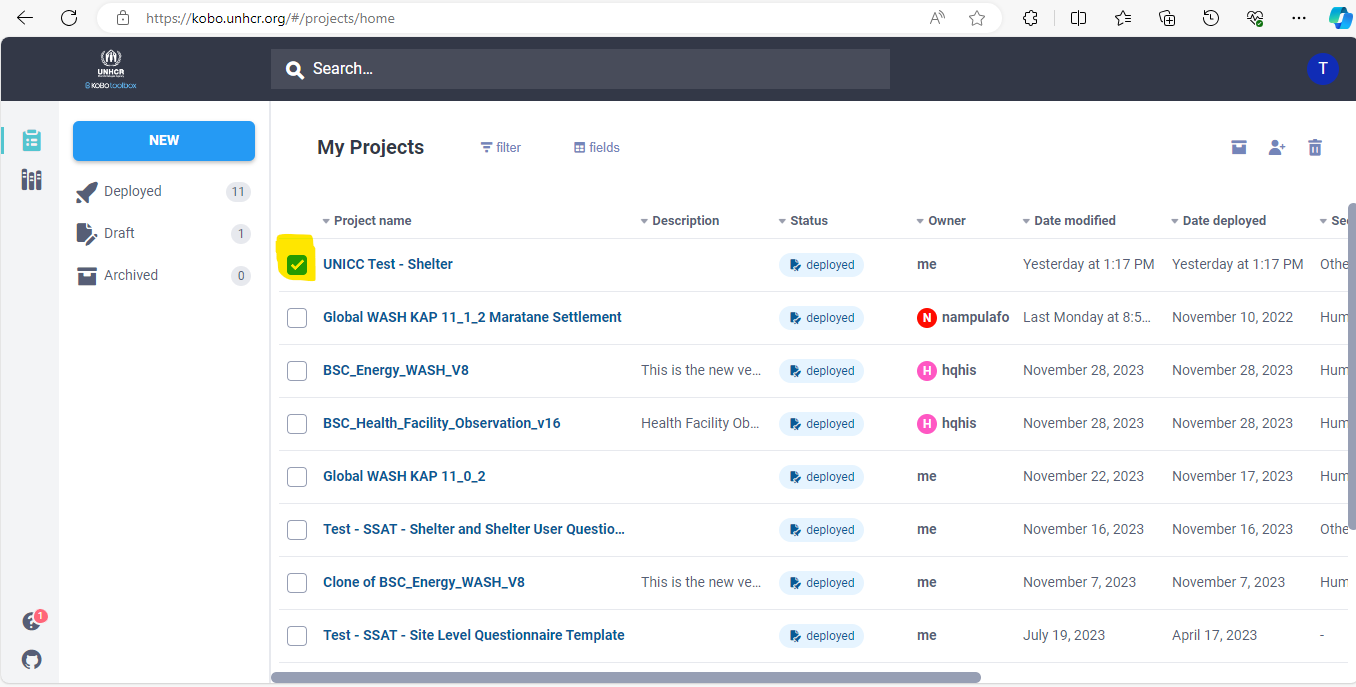
To share kobo surevy with 'tims' user please follow bellow steps ;
Open kobo site and select the desired survey.
Click on the 'Share' button for the selected survey.

Click on 'Add User.'
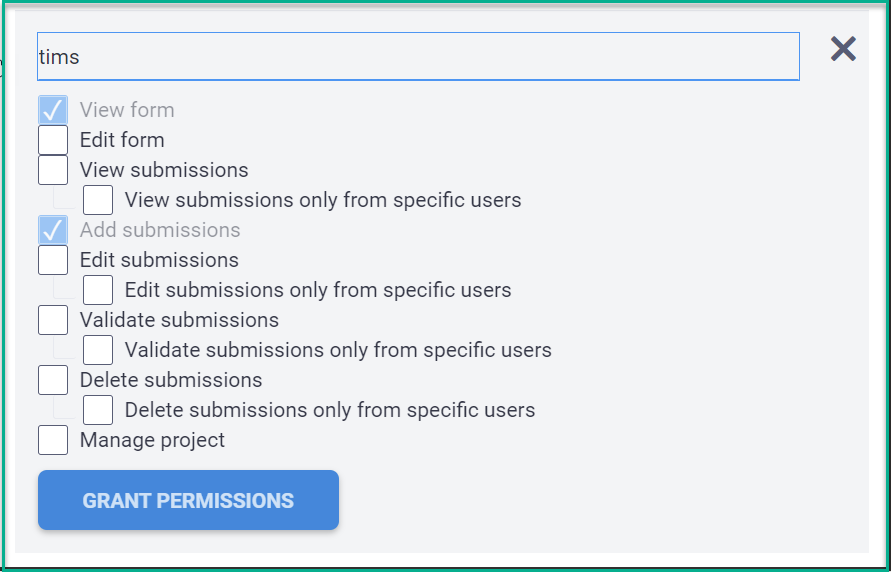
In the form that appears, enter 'tims' and click on the 'Grant Permission' button.
UNHCR Global Admin Actions
Log in to the TIMS application.
Navigate to the left-side menu Go to 'Data Sources.'
Click on the 'Kobo' Data Source.
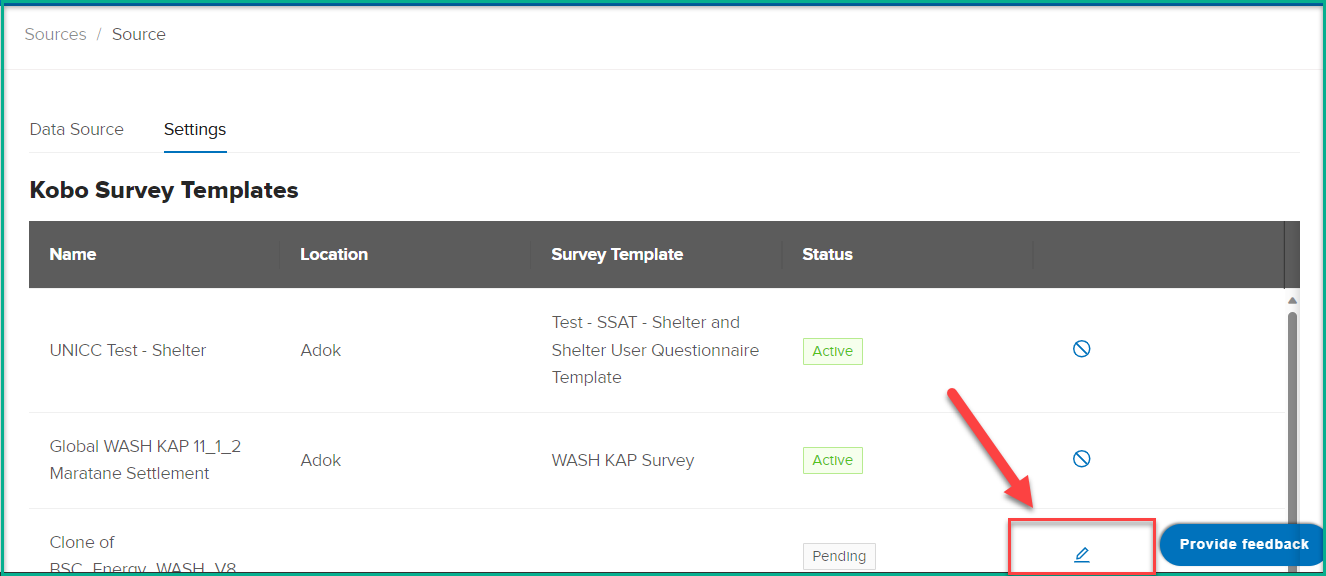
Open the 'Settings' tab, On the 'Settings' tab, you'll find a list of surveys with a 'Pending' status.
Click on the 'Edit' button for the desired survey
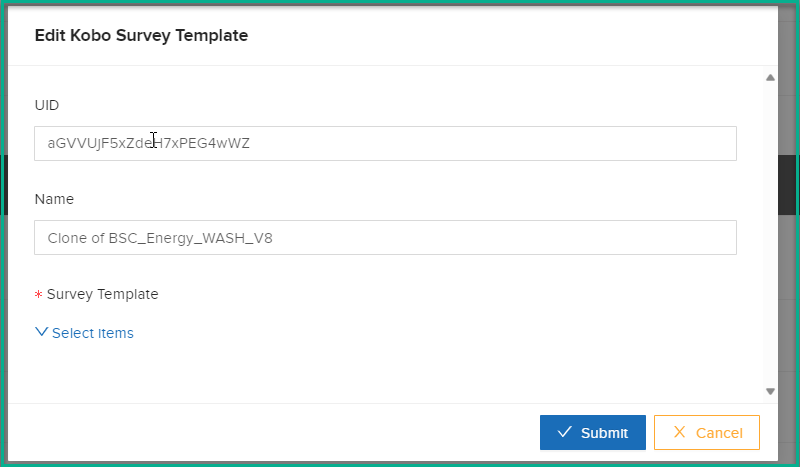
 The system opens the 'Edit Kobo Survey Template' dialog, displaying the UID and survey name as read-only fields.
 Mandatory Mapping: Choose the survey template you want to map (e.g., WASH KAP survey).
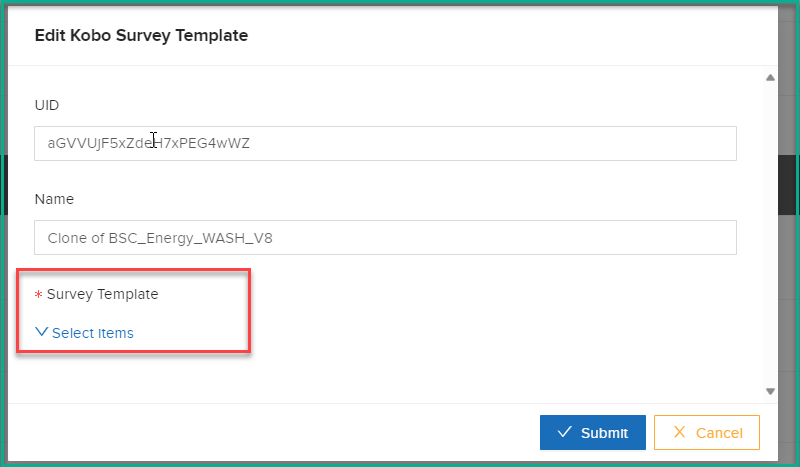 Select Location: A new list appears; select the location for mapping.
Click 'Save.'
After saving, the status changes to 'Active,' indicating that the system will trigger this survey during the automatic midnight sync for the selected location.
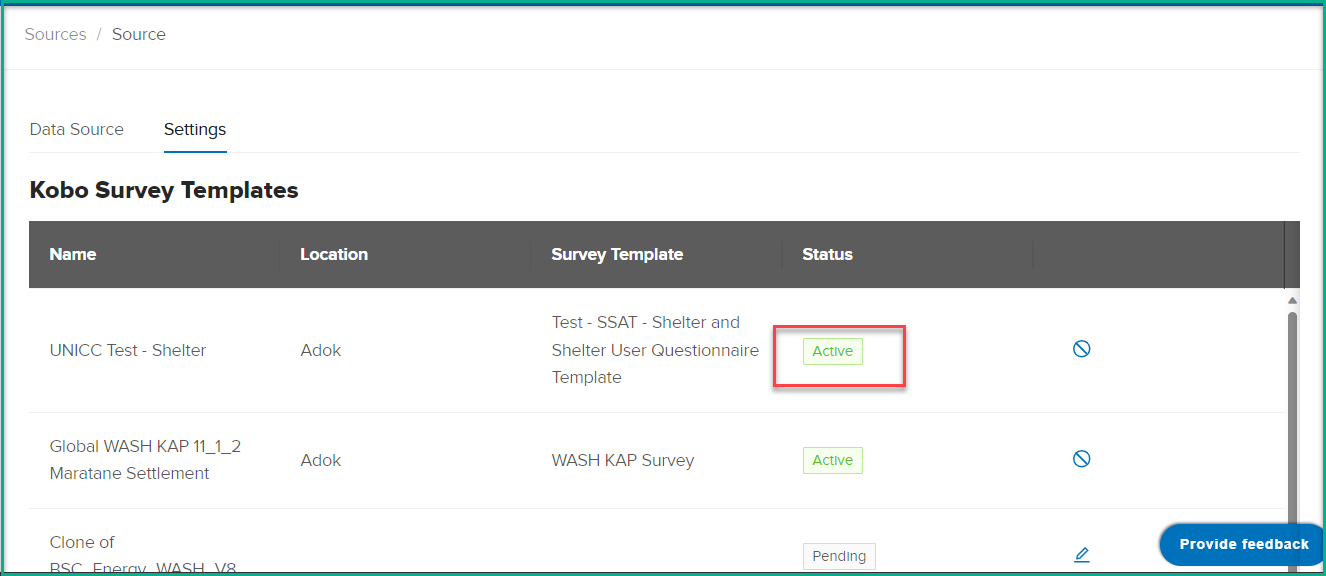
Deactivating a Survey: If you want to block the sync for a particular survey:
Click on the 'Inactive' button.
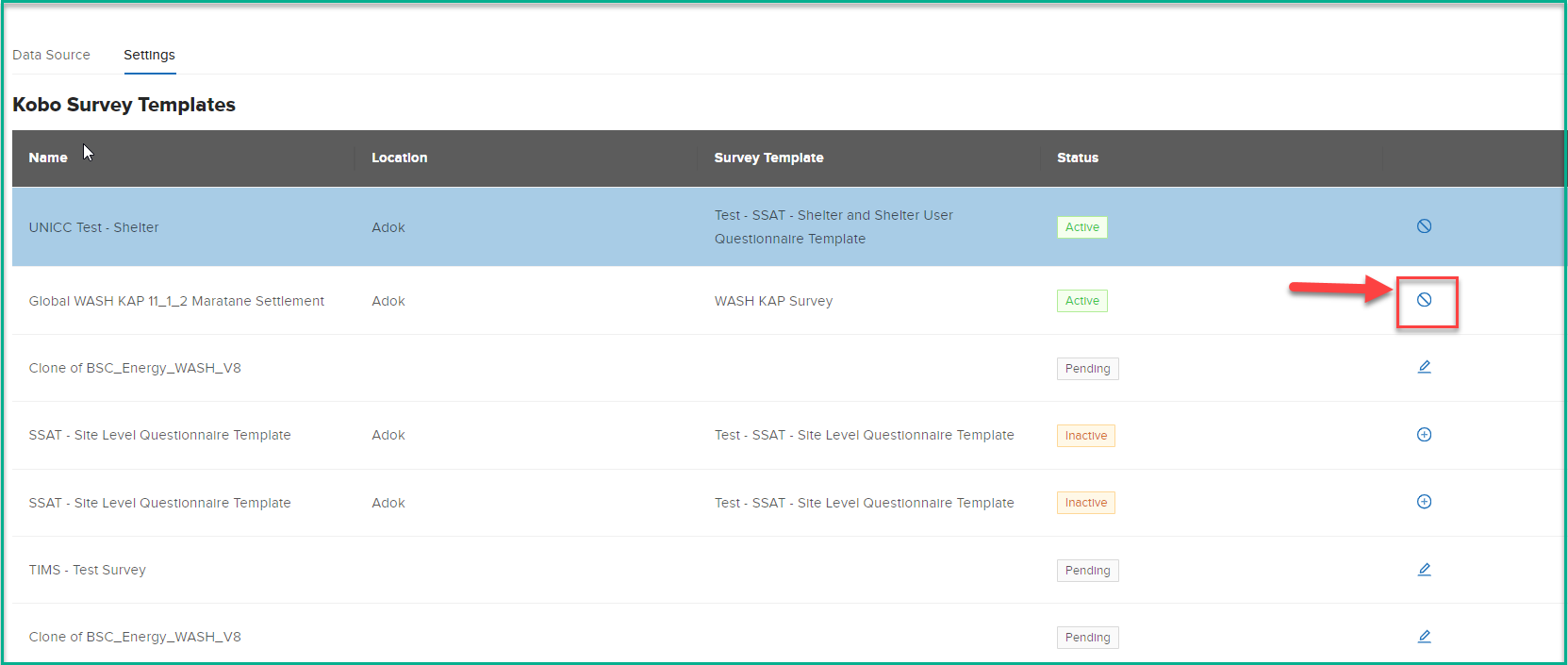
Note: There is no direct 'Edit' action to avoid affecting previously synced data. To make changes, deactivate the old survey and clone a new survey with the necessary adjustments.