Landing Page (Home)
The Landing Page serves as a central repository of vital information concerning humanitarian aid and assistance. It offers unrestricted access to publicly available data across key sectors: settlement, shelter, water sanitation and hygiene (WASH), and energy. Users, can effortlessly select sectors, regions, and countries to explore specific indicators. Additionally, registered users with relevant roles have the opportunity to contribute survey data, enhancing the platform's insights. The Landing Page empowers individuals to drive positive change and make a meaningful impact on the lives of those in need.
Accessing the Landing Page
What : Access The Landing Page
Who : All users, including anonymous users, can access the Landing Page.
How :
- Go to https://tims.unhcr.org/ in your web browser.
- If you are a registered user, sign in with your username and password as usual. For anonymous users, you can directly access the Landing Page without signing in.
-
You'll be taken to the Home page after login.
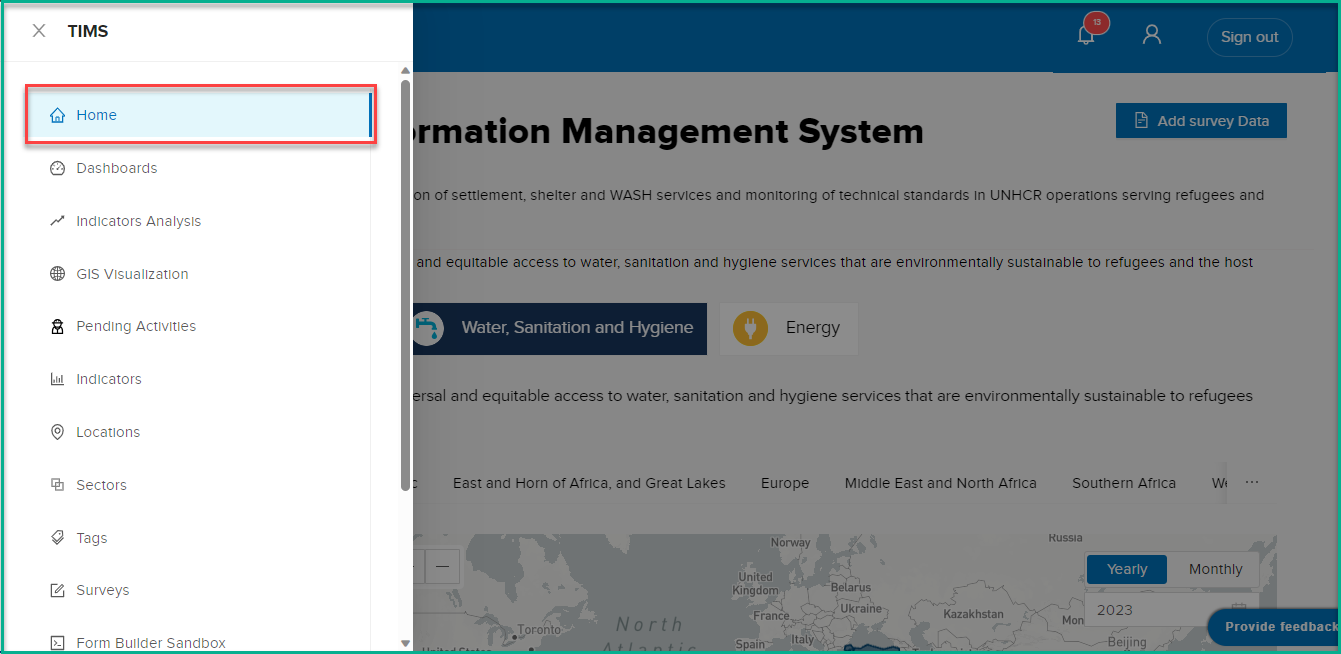
Note that while logged-in users can access the Landing Page and view all available data, anonymous users are limited to viewing only the publicly accessible data.
Page Layout
The landing page will display the heading and text at the top, providing an overview of the available data. You will find four tabs for each sector, listed in the following order: Settlement ,Shelter ,Water Sanitation and Hygiene (WASH) , and Energy
Selecting Sectors
By default, upon page load, the system will show you the sector associated with your user account. If you have indicated a different sector as a 'favorite' that sector will be displayed by default. Sectors will appear in alphabetical order.
What : Select sector.
Who : All users, including anonymous users, can access the Landing Page.
How : Click on the sector that you want to check indicators for.
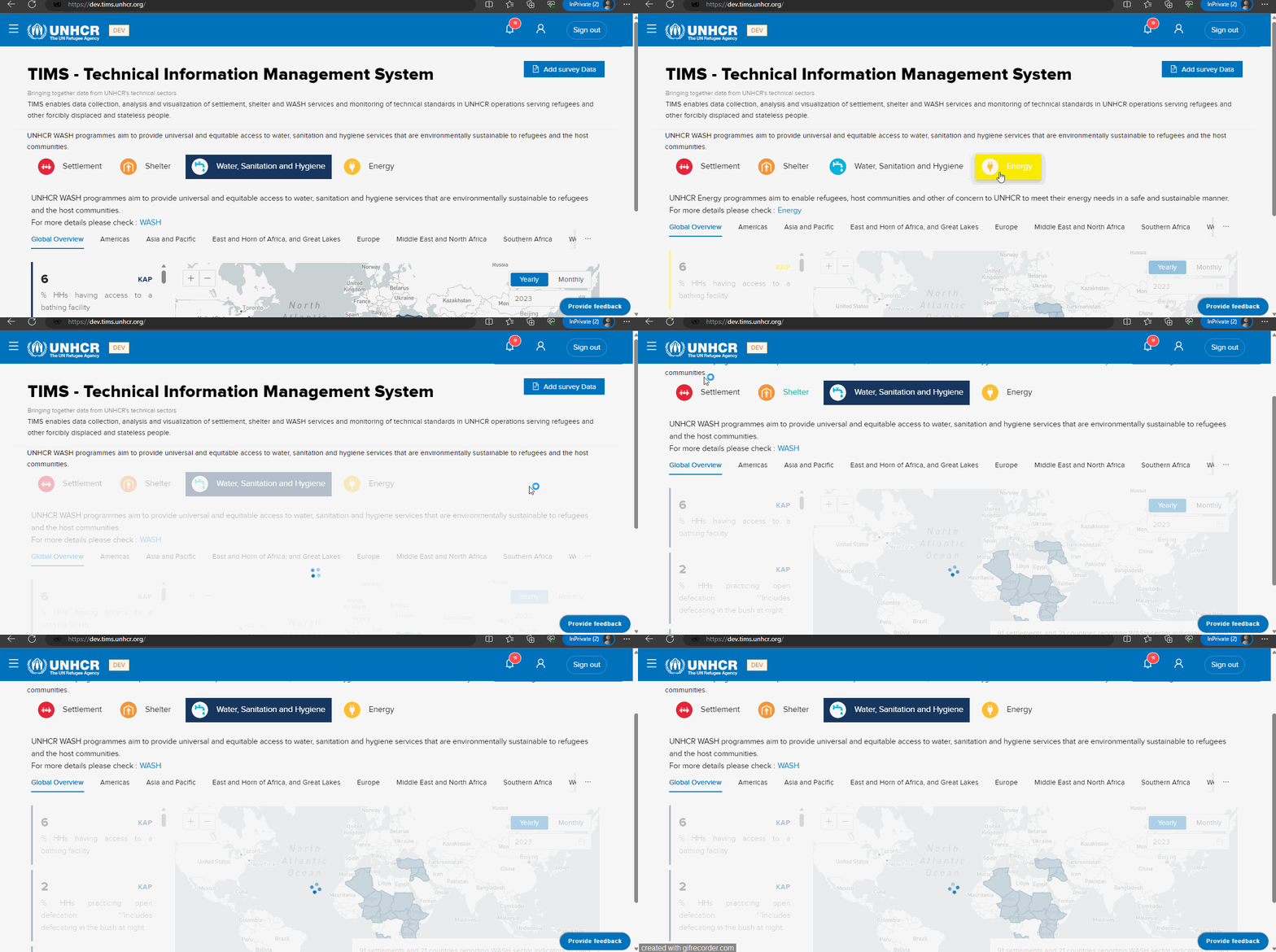
Selecting Regions
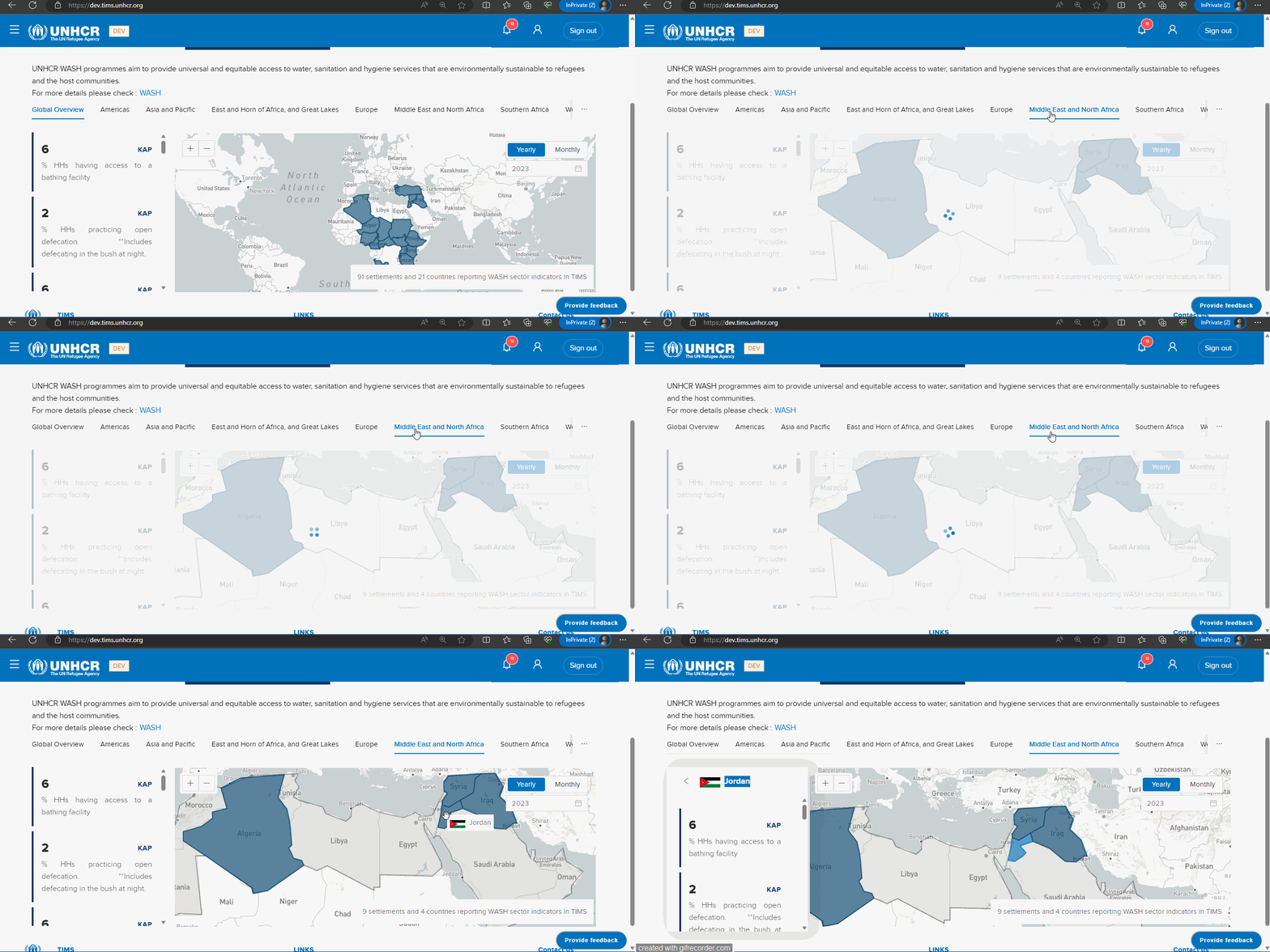
You can explore data specific to different regions by selecting from the following eight tabs: Global Overview, Americas, Asia and the Pacific, East and Horn of Africa, and Great Lakes. Europe, Middle East and North Africa. Southern Africa, West and Central Africa .
If you have multiple roles assigned for different regions, the system will display the 'highest level' region by default, following alphabetical order (e.g., country over site).
What : Select region .
How : Click on the region that you want to check indicators for.
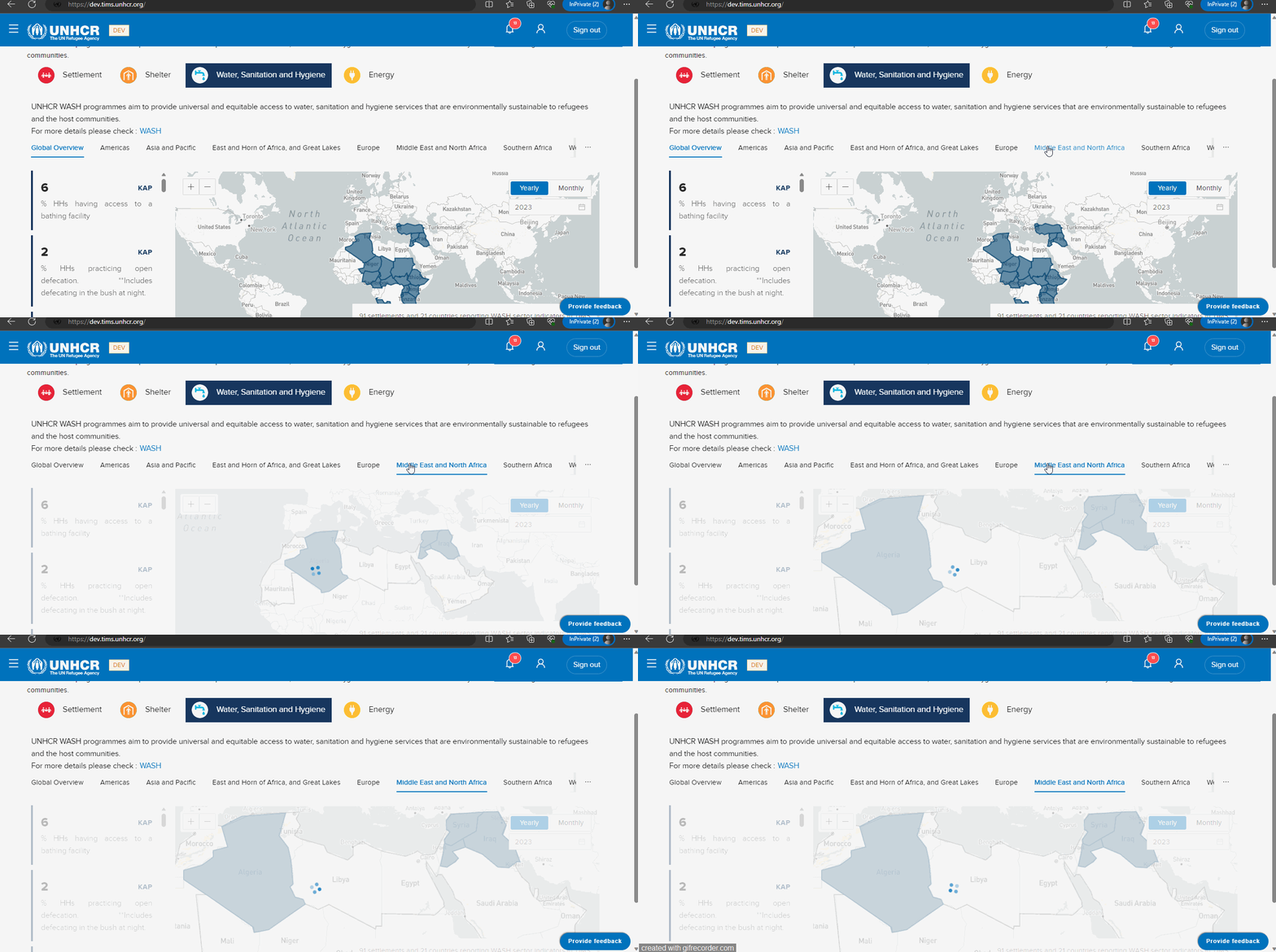
Please note that for non-logged users, only indicators available at the global level will be accessible. If a non-logged user attempts to select another region, a message will appear stating: "You must be logged in to access more details. Or you can register."
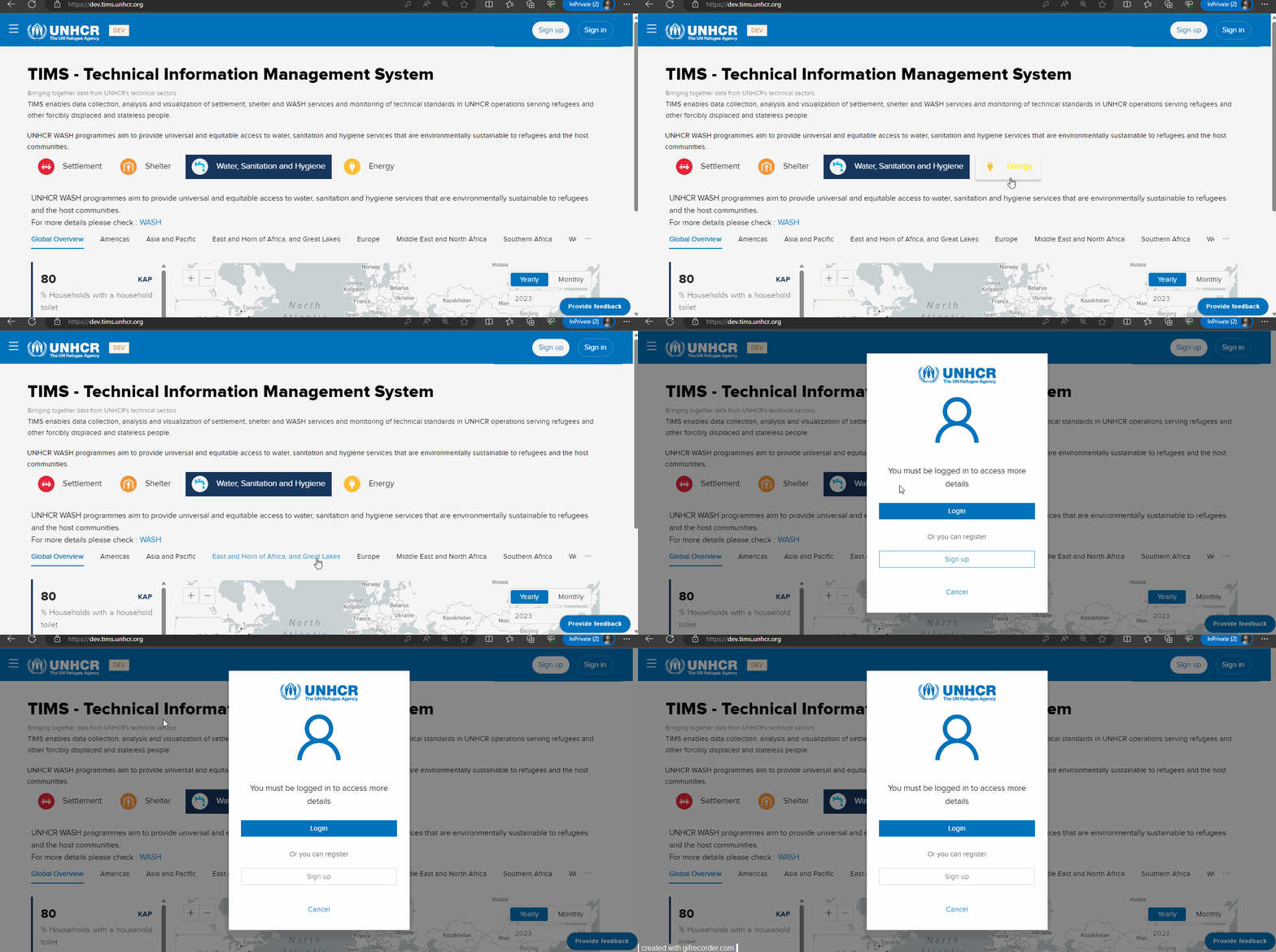
Selecting Countries
After the user selects a region, the system allows them to view indicators values based on the selected region and sector. Additionally, users have the option to further select a specific country to see data related to that country.
What : Select Country.
Who : Registered users with all different roles (Global, Country, Editor, Viewer)
How : Click on the country that you want to check indicators for.
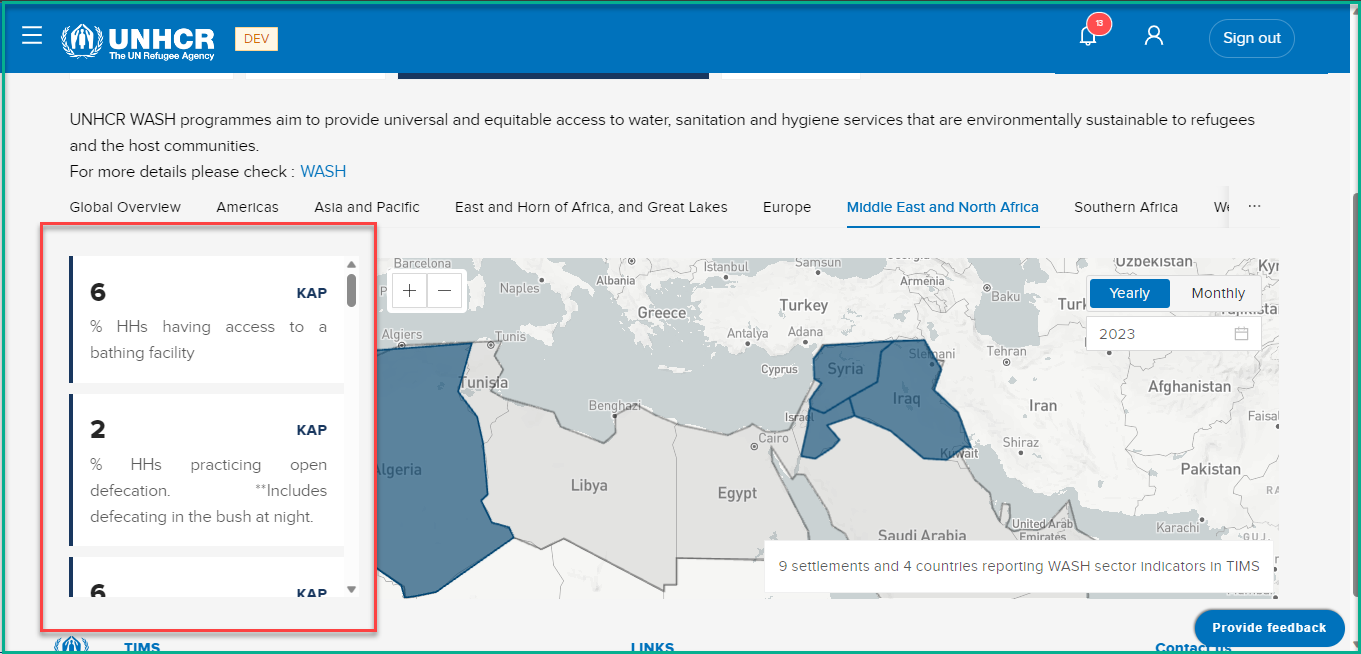
Indicators Data
The Indicators Data section provides a detailed overview of various indicators for each sector. The available indicators will vary based on the selected sector, ensuring that you receive relevant and specific data.
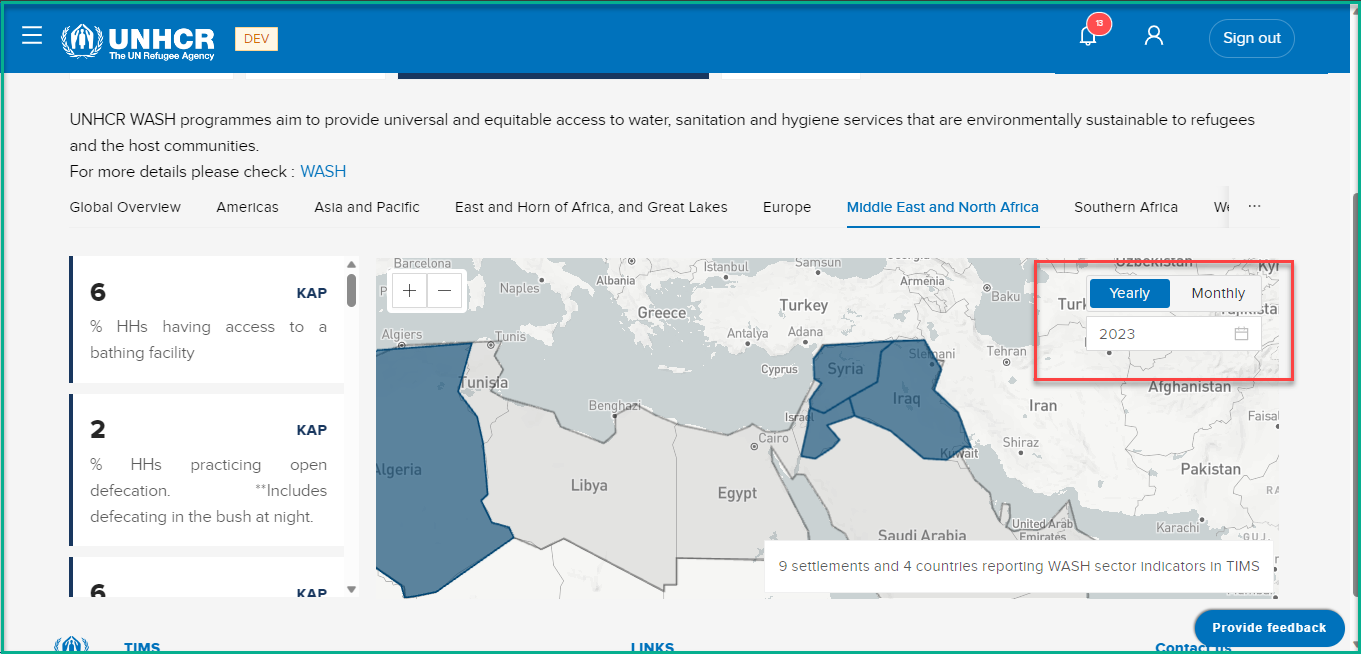
Additionally, you can select a specific month or year to view data for that particular period. Please note that some indicators may not have monthly data, and the option will be available for applicable indicators.
Add Survey Data
What : Add Survey Data .
Who : Global Admin, Country Admin, and Editor.
How :
To add survey data, follow the steps below:
- Click on the following link: Survey Data Entry Guide .
- The Survey Data Entry Guide will provide you with all the necessary steps and instructions to add survey data accurately and efficiently.